Email and Internet Services
Protect your identity. Setup your cell phone for Multifactor Authentication.
** Faculty and Staff : You can setup your phone as well. Email Instructions. As new phones come out often the screen shots in the attached document may differ slightly from model to model.
Internet/Network
- You must have a network account in order to use a computer in one of our labs. The website to Create or Change your ESU account (Email, E-Time, Desire2Learn, Network) passwords.
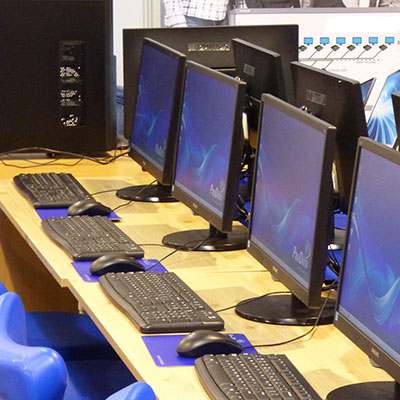
- All labs have Internet access
- All residence halls have Internet access (wired and wireless). It is always best to use a CAT 5E or Cat 6 network cable when you are stationary in your room. Call extension 3789 if a problem arises.
- Remember to log out of your account when you are finished with a computer in one of the labs.
- It is your responsibility to review the university policy on computer use.
Academic Computing
The Audio Visual Support team will help you with any audio or video needs on campus. We will help your event go smoothly and your vision come to life in the classroom through video and audio.
Audio and Visual Support (AV) provides classroom and event support across campus for faculty, staff, and university guests in their use of audio visual technology for classes, meeting, and events.
The Audio Visual support team is located in McGarry Communications Center. Please contact them directly for support and for information regarding available services.
List of Services
- Projectors
- Audio
- Video
- Zoom cameras
- Microphones
- Smart podiums in the classrooms
- Crestron support
- TV studio support
- University videos in coordination with Marking and Communication (using work studies)
- Installation of all classrooms performance, conference and other spaces needed for audio video support
Classroom Support
The AV support team assist in troubleshooting any issues with the audio video equipment
in all classrooms and conference rooms across campus. We can assist in designing classrooms
to meet today’s standard. The AV teams is always available for assistance and training
in using the classroom technology, but please let us know at least 24 hours in advance if
you'll need assistance.
Event Support
Any audio video requests for events are fulfilled by our department. Any equipment
can be picked up and used for your event then returned to our office. Technicians
can be on site at your request if approved. If your event is after working hours there
will be after hours support cost involved.
Work Orders
Please place a work order when there is a warning for lamp low on the projectors,
any issues with the teacher stations, any new equipment needed to be installed. It
is very important to be very specific on what the issue is so it is easier for the
tech to diagnose your issue right away. When placing a work order for a event please
only ask for what the room is compatible for as we do not have a surplus of supplies
like microphones.
Contact Information
Classroom Technology
For assistance with classroom technology, contact the HelpDesk
(570) 422-3789
helpdesk@live.esu.edu
Audio Visual Support
For routine services, contact AV support
Monday - Friday: 8 a.m. - 7 p.m.
Saturday: 8 a.m. - 4:30 p.m.
(570) 422-3501
avsupport@esu.edu
Resources
Student Employment Opportunities
Join our team and get on-the-job technical training. We have positions available during the academic year. You can search the ATLAS portal for available positions.
As standards change quickly, you can always call our helpdesk at (570) 422-3789 and ask to speak to a professional staff member. We will do our best to give you purchase suggestions. No matter your selection, Microsoft Office 365 is part of each student's Microsoft Office Suite. You should not need to purchase that software package.
ESU Email Account
Please check your ESU email account prior to the start of your course for information from your professor. All students who are registered for courses at ESU have been assigned an email account. If you are a new ESU student, please follow the directions below to get your log on information.
Log On Information
ESU uses Desire 2 Learn (D2L) as the online classroom. You have been assigned one log on for all accounts here at ESU which includes your ESU email account and your D2L account. Please make sure you are able to log in to D2L prior to the start of your course.
For a current ESU student:
- You must change your password the first time you log on to D2L.
- Go the D2L site
- Click on the “forgot your password” link to reset your password.
- It may take up to 5 minutes for your password to reset. Refresh the D2L log in page then use your new password to log in.
For a new ESU student:
- You will first need your student eCard number (the last 6 digits only) so that you can remotely set up your ESU email account. You can get this number by calling the ESU eCard Center at (570) 422-2273 or 1-(800) 556-8116.
- Once you have your eCard number, you can set your password. Fill in the requested information and click the “submit” button. Your User Name will appear in the white box at the bottom of the screen.
Once you have created your password you should be able to access all of your accounts. Links are available from the page where you set your password.
Accessing your course
Once you log on to D2L you should see your course listed. Click on it to begin. The course may not be active until several days prior to its start. Please feel free to contact the instructor for specific instructions if you do not see your course or if your course is not activated.
What is identity theft?
Identity theft occurs when an individual or a group of individuals gains access to your personal data, such as Social Security number, birth date, credit card numbers, bank account information etc. They may then choose to use this information fraudulently, possibly affecting your credit and financial history and future.
How do identity thieves work?
Identity thieves may work in the following ways:
- They may open a new credit card account, using your name, date of birth and Social Security number. When they use the credit card and don't pay the bills, the delinquent account is reported on your credit report.
- They may call your credit card issuer and, pretending to be you, change the mailing address on your credit card account. Then your impostor runs up charges on your account. Because your bills are being sent to the new address, you may not immediately realize there's a problem.
- They may establish cellular phone service in your name.
- They may open a bank account in your name and write a bad check on that account.
- They may use your identity as if it were their own, often committing crimes and hurting other people.
The University would like to emphasize that, at the current time, there is no evidence that any of the data is being used illegally.
How do I reach the credit reporting agencies?
The credit reporting agencies are available 24/7 and can be reached at the following numbers, Web sites and addresses:
How do I issue a fraud alert and what should I say when I call?
Call one of the credit reporting agencies listed above to issue a fraud alert. Once the alert has been issued with one of the three credit agencies, they will alert the other two. You do not need to alert all three!
We recommend you alert a major credit reporting agency that there may be a compromise to your personal information, to include your names and Social Security number. Phone prompts will guide you through the process to place a fraud alert on your account.
An initial 90-day alert will then be placed on your account, free of charge. You may extend this fraud alert to a 7-year alert by writing a letter to the credit reporting agencies. You may issue consecutive 90-day alerts, if do not want to issue a 7-year alert.
By issuing a fraud alert, is my credit affected?
By issuing a fraud alert, it does not change your credit rating. However, when applying for extended credit (for example, mortgages, car loans, credit cards etc.) you will have to actively prove your identity to the credit reporting agencies. The credit reporting agencies can provide you with more information regarding these activities.
Is there a cost to issuing a fraud alert?
No.
How long does the alert stay on the report?
An initial 90-day alert will be placed on your account, free of charge. It is possible to extend this fraud alert to a 7-year alert by writing a letter to the credit reporting agencies. You may issue consecutive 90-day alerts if you do not want to issue a 7-year alert.
Do I need to contact the Social Security Administration?
You only need to contact the Social Security Administration if you are currently a Social Security beneficiary. They can post a message to your account indicating that your Social Security number may be compromised. You do not need to contact the SSA if you do not receive Social Security benefits.
Important Information for New Students Regarding IT Services
Please visit the Welcome New Warriors page for detailed instructions on how to obtain your login id, set your password, and complete various other onboarding tasks.
Your initial login ID is typically composed of the first letter of your first name followed by your last name, with a number appended if your last name is common (e.g., Hernandez, Smith).
Once your login credentials are created, they grant access to the following resources:
WARRIOR CONNECT PORTAL
- Your primary online platform for managing academic and campus services. It provides
access to bill payments, Financial Aid information, grades, Student billing, Meal
Plans, and Campus event notifications.
- Warriors Connect, also called the “portal”, is an essential link into a student's academic persona on campus. It allows bill payment, Financial Aid, grades information [academic information], residence hall billing, meal plan billing, as well as important connections to events and programs on campus.
D2L (Desire2Learn)
The online learning platform used by faculty for course materials, assignments, quizzes, lectures, and remote access to classes. To log in, you must be registered for current semester courses; your student ID and password are required. For assistance with Desire2Learn, contact d2lstudents@esu.edu or call ext. 3435.
*****Access to D2L for Fall 2025 will be available starting August 18, 2025. This timeline aligns with our transition to a new system, aimed at enhancing the overall user experience for our students*****
Student ID Card
Student ID numbers are located on the back of your eCard. Please keep your card always
secure.
Campus Wireless Connectivity
Wi-Fi
- Main campus Wi-Fi network (SSID: ESU-STUDENTS) for students and (SSID: ESU-Wi-Fi) for staff, accessible via your login ID and password through a prompted browser login.
- Residence Life Wi-Fi network (SSID: ResNet). Refer to the Residence Life Network for registration and connection details.
- Before connecting to ResNet, your device will be scanned to verify that it has up-to-date antivirus software and the latest operating system updates. Devices lacking these updates may experience delays in connecting.
- All residence halls offer wireless access. For assistance, contact the ResNet Help Desk at ext. 3789.
- iPhone users: To ensure proper Wi-Fi connection, disable the "Private Address" setting in your Wi-Fi network options.
If you experience connectivity issues, please contact the Help Desk at (570) 422-3789.
Computer Labs
A comprehensive list of campus computer labs and their hours of operation is available on the Computer Labs page.
Campus Computer Login
After activating your account either remotely or in person, you will be able to log into any campus computer. Use your student username, password, and ensure the domain is set to "STUDENT".
Account Activation and Password Assistance
To reset your email password or activate your account, you will need your eCard. Follow the instructions provided at the Change Email Password link or contact the Help Desk for further assistance
Contact
d2lstudents@esu.edu or ext. 3435
I don't remember my password or How do I activate my Account
Change Email Password. You will need your eCard.
All general purpose labs have the following software:
- Acrobat Reader
- Adobe Creative Cloud suite 2022
- Anaconda 3
- Android Suite
- ArcGIS 10.8
- ArcGIS Pro
- Audacity 2.4.2
- BIOVIA Draw 2017
- Blend for Visual Studio 2019
- BlueJ 4.2.2
- EndNote X6
- ERDAS Imagine 2018
- Faronics Deep Freeze
- Firefox
- Git
- Gold Parser Builder
- Google Chrome
- Google Earth Pro
- GraphPad Instat 3
- GraphPad StatMate 2
- IBM SPSS 28
- JGS ForecastX
- KeyCreator 2019
- Epi Info 7
- Maxon Cinema 4D 25
- Microsoft Azure
- Microsoft Edge
- Microsoft Office Professional Plus 2019
- Microsoft Visual Studios 2019
- Notepad++
- Python 3.7
- QGIS 3.14
- R 4
- Respondus Lockdown Browser
- R Studio
- SAS 9.4
- SolidWorks 2015
- Sublime Text 3
- TortoiseSVN
- Unity 2019
- Vectorworks 2020
- Vernier Logger Pro 3.11
- VLC Media Player 3.0.16
- Wacom Tablet Desktop Center
- Wolfram Mathematica 12.3
- Zoom
Lab Hours
During Breaks: During Breaks [Spring and Fall] these labs are open in accordance with the building hours [i.e. When the Kemp library is open, so are the labs in Kemp library.].
Labs during the week are open in accordance with the buildings availability, and in
some cases based on the classroom schedule
Some of these labs have classes scheduled during the weekdays, during those hours
the labs are closed to all students not in that class.
| Labs | Hardware |
|---|---|
|
DeNike 2nd floor |
23 Windows machines
Lexmark laser printer |
|
Fine Arts 218 |
8 Windows machines |
|
Gessner 117 |
20 Windows machines |
|
Gessner 317 |
39 Windows machines |
|
Koehler Field House 2nd floor |
10 Windows machines
Lexmark laser printer |
|
Monroe 221 |
4 Windows machines |
|
Monroe 225 |
4 Windows machines |
|
Science/Technology Rm 138 |
42 Windows machines |
|
Science/Technology Rm 145 |
40 Windows machines |
|
Science/Technology Rm 352 |
24 Windows machines |
|
Science/Technology Rm 355 |
24 Windows machines |
|
Science/Technology Rm 356
|
24 Windows machines
Lexmark laser printer |
|
Science/Technology Rm 360 |
26 Windows machines |
|
Stroud 202 |
32 Windows machines
Lexmark laser printer |
|
Stroud 207 - Geography Lab |
13 Windows machines |
|
Stroud 314 |
37 Windows machines |
|
University Lounge 3rd floor |
17 Windows machines |
|
Kemp Library
|
16 Windows machines |
|
Kemp Library PAC |
18 Windows machines |
|
Kemp Lab 1st Floor |
40 Windows machines |
|
Kemp Lab Ground Floor |
46 Windows machines |
|
Zimbar 237 |
35 Windows machines |
|
Lehigh Valley |
35 Windows machines |
ESU uses Desire2Learn (D2L) as our learning management system.
D2L can be utilized as a platform on which to build online courses and to supplement traditional, face-to-face courses by providing a single site for students to access online resources and activities.
Getting Started
If you haven't yet logged into D2L, you may do so at the D2L homepage. The D2L login uses the same username and password as your ESU email, so if you have not yet activated your ESU email you will need to do that first by following the instructions on the student password reset page. You will need your ESU eCard to complete the process.
For an introduction to Desire2Learn (D2L) and other commonly used learning tools like Zoom, please visit the ESU D2L Help Site (you must be signed in to D2L to access this site). There you'll find a collection of short, targeted videos designed to help you quickly get going in your class.
Continuing Support
If you're already on D2L and need help with a topic not covered in the D2L Intro or would like to contact support personnel, please look for the "Student Support" area on the D2L homepage as seen in the image below. Student Support contains the full Support Resource Library with guides, videos, and walk-throughs for nearly all D2L features, as well as contact information for ESU's Academic Computing Help Desk and D2L's Support Center.
D2L Login Issues Helpdesk, helpdesk@live.esu.edu (570) 422-3789
Faculty Training Rae Hirst, rhirst@esu.edu (570) 422-3240
These are very general instructions. Each device is different and will connect to the server differently. Please be aware of this when you are trying to set up your email on your phone or other Internet capable device.
To set up email on your Internet capable device or your phone follow the steps below (faculty/staff see the below link for additional information):
- Go to your email accounts or settings options on the device.
- You need to use the Microsoft Exchange Support or the Corporate Sync function. This will vary by model and type of device. Some devices use Microsoft Exchange Support while others use Corporate Sync.
- You will need to provide your email address, username and password.
- Finally you will need to setup a security pin for your device if it doesn't already have one before you start to receive email.
- Do not need to add a "domain" but must use their email address as the username.
- The server for students' mobile and internet ready devices is: "outlook.office365.com".
- The SSL option must be enabled on your phone or other device.
Faculty & Staff
If you need help setting your password, please call our helpdesk at (570) 422-3789.
Telephone Use Policy
Purpose:- To keep University telephone lines open for necessary business calls.
Policy:
- Office desk phones and cell phones (when approved) are issued for University business purposes.
- The University recognizes that there may occasionally be times when personal calls must be made or received during business hours.
- Such calls must be held to a minimum, however, and must not interfere with the employee's work. Employees are encouraged to make such calls during their breaks or at lunchtime.
- When a long–distance call results in a charge, the call must be billed to the caller's home phone number or charges reimbursed to the University.
Personal Cell Phone Use
- Use of personal cell phones must be held to a minimum and must not interfere with the employee's work.
- Employees are encouraged to make personal calls during their breaks and lunchtime.
Network Connectivity Policy
- The following applies to all users of the ESU Computer Network.
- All equipment devices and computers connected to the network are the responsibility of the East Stroudsburg University Computing Services department, Academic Computing & Administrative Computing.
- The data network at ESU is provided in support of academic and administrative services. Any equipment connected to the network must be authorized by Computing Services.
In order to protect the security and integrity of the computer and network resources against unauthorized or improper use, and to protect authorized users from the effects of such abuse or negligence, Computing Services reserves the right, at its discretion, to limit, restrict, or terminate the use of equipment or services, unauthorized or authorized, that Computing Services perceives to be an impediment or compromise to its ability to securely deliver the services for which it is responsible.
East Stroudsburg University Computer Lab & Network policy
- This policy governs the use of all ESU computer facilities and resources. This includes the use of all university computer labs and network connections.
- The university reserves the right to limit, restrict, or extend computing privileges and access to its resources.
- Persons who do not abide by the polices listed below should expect possible suspension of computer privileges and possible referral to the University Disciplinary Committee.
- Offenders may also be subject to criminal prosecution under federal or state law, and should expect Computing Services to pursue such action.
- Computing Services should be notified about violations of computer laws and policies, as well as about potential loopholes in the security of its computer systems and networks.
- The user community is expected to cooperate with the Computing Services Department in its operation of computer systems and networks as well as in the investigation of misuse or abuse.
- The Computing Services Department has the right to monitor user actions and examine all files on the lab computer hard drives and network server.
East Stroudsburg University Security Policy
East Stroudsburg University of Pennsylvania (ESU) is dedicated to providing a trusted environment for information processing. This environment includes the protection of the confidentiality, integrity, and availability of the campus information system.
Specifically,
- Confidentiality of data refers to the ability of only authorized users to read data;
- Integrity of data refers to the ability of only authorized users to create or modify data; and,
- Availability of data refers to the ability of only authorized users to have as-needed access to data.
In this regard, ESU will create a campus-wide System Security Plan.
This plan will help categorize all campus information security resources in one document, as well as help promote information security awareness on a campus wide basis. In order to help maintain a trusted environment for information processing, the ESU Director of Computing and Communication Services is also the ESU Information System Security Officer.
In this office, the Director has the following responsibilities:
- Creation and implementation of the campus-wide System Security Plan;
Maintenance of appropriate policies with regard to information security (e.g., Acceptable Use Policy); - Continued improvement of the campus-wide information security awareness program;
- Promotion of appropriate information security education and training for key personnel,;
- Selection of appropriate security controls for the protection of the confidentiality, integrity, and availability of the ESU information system;
- Auditing of security controls to ensure these controls are satisfying their security requirements;
- Promotion of privacy of user information;
- Managing the response to security incidents; and,
- Delegation of security responsibilities to the appropriate parties, such as IT managers.
Privacy Policy
- While the East Stroudsburg University recognizes the role of privacy in institutions of higher learning, and will endeavor to honor that ideal, there is no expectation of privacy of information stored on or sent through State System/University-owned IT resources, except as required by law.
- Use of the IT resources is a privilege and signifies agreement to comply with this policy. Users are expected to act responsibly, and follow the policies and any applicable laws related to the use of IT resources.
- Any computer and network accounts issued for your use remain the property of East Stroudsburg University (ESU).
- As property of ESU, the institution has the right to view any and all information and data regarding any use of this equipment.
- This includes, but it not limited to, all e-mail, Internet activity, data files, documents, and messaging activity.
- While it is not in the interest of ESU to look at any of the files saved by any individuals on the equipment and any information accessed, be advised that this information may be viewed to resolve issues of performance, to resolve complaints, or to respond to requests from police, FBI, or other cognizant agencies.
- ESU cannot and does not guarantee the security or confidentiality of electronic information.
While personal equipment is generally not allowed connection to the campus network, where exceptions are made, the owner should be aware that once connected to the campus network, the equipment and use of it is subject to campus policy.
Computer Lab Rules & Regulations (1,2)
- No food or drinks are allowed in the campus computer labs.
- Computer facilities are to be used by registered ESU students, faculty, and staff only. Users should bring their university IDs when using the facilities.
- Computing Services staff have the authority to use any equipment in the computer labs, or to request that others stop using any equipment in these labs, either temporarily or permanently.
- Physical abuse of the computer equipment is prohibited and will result in loss of computer lab privileges, university disciplinary action, and criminal prosecution.
- You must not attempt to modify in any way a program that Computing Services supplies for any type of use at its sites.
- You must abide by the terms of all software licensing agreements and copyright laws.
- You must not deliberately perform acts that are wasteful of computing resources or that unfairly monopolize resources to the exclusion of others.
- Printing of multiple copies of any documents including resumes, thesis, and dissertations is strictly prohibited.
- Restrict recreational use on lab computers to low traffic times. Students needing the computers for academic purposes have priority. Recreational users may be asked to discontinue their use to provide access for academic applications. Recreational use over modem access is absolutely forbidden. Recreational use includes, but is not limited to, game playing, IRC (Internet Relay Chat), and other chat channels.
- You are expected to frequently use the anti-virus program to scan disks and files for viruses. It is each user's responsibility to protect his/her own diskette from a virus. The university is not responsible for infection of non-university software or hardware.
- Faculty who have scheduled a computer lab for a class have priority to the lab and may request students to leave. It is the user's responsibility to consult the schedule for open lab time. Schedules are posted outside each lab.
- Deliberate introduction of a virus affecting the computer labs and/or network will result in suspension of computer privileges, referral to the University Disciplinary Committee and possible criminal prosecution.
- Assist Computing Services in the conservation of paper and printer toner by on-screen editing, and running spell check and print preview options before printing a copy of the document.
Network Rules, Regulation, and User Guidelines
Many of the Internet resources are provide by the U.S. Government. Abuse of the system thus becomes a Federal matter above and beyond simple professional ethics. Access to and use of the Internet is a privilege and should be treated as such by all users of the system. (Internet Activities Board 1/89)
- Any network traffic exiting the University is subject to the acceptable use policies of the network through which if flows (Voicenet, SSHENET, SSHENET II, etc.), as well as to the policies listed below.
- Sharing of network accounts for any reason is prohibited. You must not reveal your account password to anyone. Users are responsible for any misuse of their account that is due to their own negligence. Users are responsible for reporting unauthorized use of their account to Computing Services. Accounts can not be transferred to or used by other individuals.
- ESU reserves the right to hold you financially responsible if, through negligence or deliberate action, it's computer resources are compromised in any way by you or someone using your account.
- You are responsible for protecting your account and its contents. Passwords only provide limited protection of electronic material in your account.
- You are responsible for your files. Files are to be copied to a removable media. Computing Services is not responsible for your personal files.
- ESU students, faculty, staff, and administrators are considered priority users. The network administrator has the right to limit affiliated or guest network access based on priority users needs.
- You must not use the university computing network resources to gain or attempt to gain unauthorized access to remote computers.
- You must not deliberately perform an act that will seriously impact the operation of computers, terminals, peripherals, or networks. This includes, but is not limited to, tampering with components of a local area network (LAN) or the high-speed backbone network, otherwise blocking communication lines, or interfering with the operational readiness of a computer.
- You must not harass others by sending annoying, threatening, obscene, or offensive messages, this includes sending chain letters.
- You must not attempt to monitor another user's data communications, nor may you read, copy, change, or delete another user's files or software, without permission of the owner and Computing Services.
- If a computer account is being used in such a way that it causes conflicts with other machines, accounts, or people, some or all access privileges may be removed from the account.
- Remember, just because you can perform a particular action does not entitle you to take that action.
- You are responsible to comply with all applicable laws of the United States when using the university computing network.
- You are not permitted to setup a server or use serving software without the written permission of Computing Services.
Acceptable Use of the Network (3)
- Use for purposes of, or in support of, education and research.
- Use for purposes of technology transfer to or from the academic community.
- Use for participating in the economic development programs of Pennsylvania.
Unacceptable Use (4)
- Use of SSHENET for illegal purposes or for unauthorized access to systems, software, or data.
- Activities that interfere with the ability of others to use SSHENET or other facilities connected to the network effectively.
- Use by commercial organizations for internal communications.
- Distribution of unsolicited marketing, advertising, or personnel recruiting materials.
- Use by commercial organizations that does not meet the above.
- Use of your account or the network for business or commercial purposes.
- An e-mail account is provided for each faculty, staff and student member of the campus community. This e-mail account must be used for all ESU business. Forwarding of mail to an outside e-mail system is not condoned. In addition to not receiving support and not being backed-up, outside e-mail accounts increase the campus's vulnerability to e-mail born viruses.
- Student email is deactivated 90 days after graduation, or they cease to be enrolled. This cannot be undone under any circumstances. This policy aims to reduce the amount of email account breaches and phishing attempts. Exceptions to this policy are not made. We highly suggest you maintain a personal email address outside of ESU, and forward important messages to that account so they are accessible.
- Computer access and web accounts are available to all registered students. Your account will remain active as long as you register for courses from semester-to-semester, register in the spring for the following fall semester, or register in the fall for the following spring semester.
- If you are not registered as stated or if your semester credit total equals zero your account (web and computer) will be disabled a week after the last day to register for a class, and purged a month after it is disabled.
- Maintenance of a user's electronic mailbox is the users' responsibility.
- Never assume that your e-mail can be read by no one except yourself; others may be able to read or access your mail. Never send or keep anything that you would not mind seeing on the evening news.
- Be professional and careful about what you say regarding other persons. E-mail is easily forwarded.
- Cite all quotations, references and sources.
- Use discretion when forwarding mail to group addresses or distribution lists. It's preferable to reference the source of a document and provide instructions on how to obtain a copy.
- Avoid forwarding personal e-mail to mailing lists of Usenet without the original author's permission.
- Be careful when using sarcasm and humor. Without face to face communications your joke may be viewed as criticism.
- Chain letters are strictly prohibited and should be reported to Computing Services.
- Bulk Mailing is strictly prohibited and should be reported to Computing Services.
FTP- File Transfer Protocol
- When possible limit downloads, especially large downloads (1 Meg+), for after normal high traffic hours locally and for the remote ftp host; preferably late in the evening.
- Copy downloaded files to your personal computer hard drive or disks to remain within disk quota. If downloading from an FTP site to a lab computer, the downloads must be moved to the user's floppy disk after the download is complete.
- It's the user's responsibility when downloading programs, to check for copyright or licensing agreements.
- Routinely and frequently virus scan your system, especially when receiving or downloading files from other systems to prevent the spread of a virus.
Residence Hall Internet Usage Policy
In order to access the Internet in a residence hall, the student must read and accept the Campus Network Usage Policy when setting up their connection the first time. It reads as follows:
- I am registering for connection to the East Stroudsburg University of Pennsylvania computer network through my residence hall room using my own personal computer. The use of the university's computer network is a privilege, not a right. I understand and consent that if I violate the campus computer use policies I may lose my network connection and I will be subject to any other sanctions or penalties that may result from such actions. By acceptance of this notice I agree to abide by university computer use policies.
- I agree to use the IP (Internet Protocol) address automatically assigned by Computing Services and will not assign my own. I agree that I will not use my computer as a gateway serving service to any other computer.
- I further agree to limit the use of my computer to perform to the following specifications
for on or off campus network access:
- Configured to use TCP/IP protocol only.
- Windows 10/11 , Mac OS 10.14 (Mojave) and newer linux only with all critical updates installed.
- Not to use my connection for business purposes.
- Not to share my connection or connection/configuration information with others.
- Not to setup a wireless access point as wireless is provided.
- Not act as a server to provide applications and other software to any other persons.
- Not to act as a server in any form.
- Not act as an FTP server to provide software through the FTP protocol or any other protocol that provides for file transfer from my PC to another PC.
- Not act as an e-mail server, proxy server, web server, or file server; this includes MUSIC and MOVIE files.
- Not provide user accounts on my personal computer for other persons use.
- Not act as a gateway or provide access to the Internet for other computers.
- Not download software from university servers.
- I understand that I am not permitted to use my computer as a web server. If I wish to have off-campus access to a web page, I will place the page on one of the authorized campus web servers. Instructions for setting up a web page can be found at http://www.esu.edu/ac.
- I understand it is my responsibility to have a functioning Ethernet Network Interface Card installed configured to use the TCP/IP protocol, functioning and updated anti-virus and spy ware software.
- I understand and agree that I am responsible for not violating any applicable copyright laws when downloading files to my computer, including movie and music files, and for obtaining legal copies of all software installed on my personal machine.
- I understand that if I change rooms during the semester Academic Computing MUST be notified by calling 3789.
- By acceptance of this document, I am agreeing to the above conditions and understand the implications of not complying with those conditions.
Reference
- Rinaldi, Arlene,H. "The Net User Guidelines and Netiquette" Academic/Institutional Support Services, Florida Atlantic University. July, 1994
- "Policies on the Use of Computer Systems and Facilities" Lehigh University Computing Center, August 1992
- "Temple University Academic Computer Usage Policy" Temple University, September 1994
- PREPnet Standard Acceptable Use and Connection Policy and Agreement, August 1992
Privacy
These computers are owned and operated by the East Stroudsburg Computing Services Department, which reserves the right to monitor any action or any record of any action that you perform while using the ESU academic computing system. This department has the right to monitor your actions because these facilities are owned and operated by ESU: access to this equipment by members of the ESU community is not a right, but a privilege.
The ESU Computing Services Department also reserves the authority to delegate the right to monitor user actions to any legitimate representative of ESU. This right to look over your shoulder is a right that members of Computing Services and their proxies try to exercise in a judicious fashion. Your files and records may be examined, at any time, without your prior knowledge.
Department offers High Speed Internet with wide range of IoT , game device support
- Resnet has 20Gbps trunk to the Internet - Wireless and hard wired, best and fastest service is hard wired, See your RD if you need a Free Ethernet network cable.
- Each student device is given up to 50 Mbps data speed for smooth HD video streaming. 4K TV's are supported
- Most wireless devices are supported (wireless routers and extenders are not allowed)
- Wireless printers can be added but we're not responsible for unknown prints, security recommended. We're the only State System school offering this level of BYOD support.
- 802.11 ac/ax wireless throughout all Residence Halls including University Ridge (faster and higher capacity)
- 20Gbps redundant backbone links to all Residence Halls and University Ridge
- most IoT devices (Echo , Google Home, Roomba's, etc.) are automatically registered and supported
There is no cable from Blue Ridge in any residence halls . Setup streaming devices
( Roku , FireTV , etc ) to get your viewing online
University Ridge Suites are now serviced by RESNET and have all the benefits the other
campus students have enjoyed for many years. Any Network or Cable issues at the Ridge,
you can now call the ESU Helpdesk at (570) 422-3789 or email helpdesk@live.esu.edu.
RESNET Accepted Registered Software for Fall 2025
- The Residence Halls and the Ridge are on a separate Network Called the RESNET, please read The Policy on Residence Hall Internet Usage
Operating Systems Info
- We support OS Windows 10 - and newer (all patch levels)( No Server OS ) Patch Updates
- We support Mac OS 10.15 (Catalina) and newer
- Linux
Special notes for wifi use on cellular phones
Hotspot enabling on cell phones are not allowed / supported iPhone and iPad w/cellular: Turn off WIFI-ASSIST to avoid Cellular data charges. This "feature" is on by default iOS 9.x and above
Android phones: Turn off DOWNLOAD BOOSTER to avoid Cellular data charges. Any file over 30mb will trigger this "feature"
* New to Android 10 OS and later: iPhone, iPad IOS 14 and later, Macbooks MacOS 15 and later * ( Very Important !!! )
Randomized mac address is on by default and your device will fail to connect to the ESU Resnet.
To disable randomized mac in Android 10 and later
- Open settings app
- Select Network and Internet
- Select WIFI
- Connect to ESUResnet
- Tap gear icon next to the current connection
- Select Advanced
- Select Privacy
- Select "Use device MAC"
To disable randomized MAC in iPhone , iPad IOS 14 and later
- open settings app, then tap wifi
- Tap the info button next to the ESUResnet
- slide off "Use private address"
- Turn wifi off then on to get online.
To disable randomized MAC in Macbook OS
Requires macOS Sequoia 15 or later
- Choose Apple menu > System Settings, then click Wi-Fi in the sidebar.
- Click the Details button or More Info button next to the network name.
- From the menu next to Private Wi-Fi Address, choose Off
*If you have wifi issues, open a browser on the device and enter my.meraki.com, run speed test. If signal level is below 15db or speed below 5mbs, send test results to helpdesk@live.esu.edu with your contact information. We will be able to assist you with your issue.
Printer Support
Wireless printers: wireless printers can be added but we're not responsible for unknown prints, security recommended
To connect your laptop / desktop to the ESUResNet
Wireless connect to ESU ResNet SSID and open a web browser. Try msn.com or other web site and you will be automatically directed to our registration portal. Enter your Student login/password and follow prompts to finish. If you get a " Enter server address for the dowload of scanner , enter EAST STROUDSBURG UNIVERSITY" in server address line and continue. When your device passes the scan testing, wait for 1 minute for your device to get online.
Wired connect Ethernet cable to wall jack and open a web browser. Try msn.com or other web site and you will be automatically directed to our registration portal. Enter your Student login/password and follow prompts to finish. If you get a " Enter server address for the dowload of scanner , enter EAST STROUDSBURG UNIVERSITY" in server address line and continue. When your device passes the scan testing, wait 1 minute for your device to get online.
Gaming consoles, printers, Echo and echo Dot, FitBits, and TV streaming devices (some older Vizio TV models are not supported via wireless at this time. Try uploading your TV firmware or please connect to wall with an Ethernet cable
Just leave unit powered ON and either plugged into your room Ethernet jack or associated to the ESU ResNet SSID wireless. Our new Profiler system will auto-register devices in a few minutes. If after restart, you have no Internet access before you email the Help Desk at helpdesk@live.esu.edu, please follow the instructions to obtain your MAC address (example 00:11:22:33:44:55 ) on your gaming/streaming device.
Resnet Supports most Windows AntiVirus software 2018 or newer
Preferred: Malwarebytes
Resnet Supports most Mac-OS-X AntiVirus software 2018 or newer
Preferred: Avira-Mac-Security
File Sharing
The Supreme Court of the United States considers sharing of material that has a copyright for which you do not own and illegal activity. I am talking about "free" music and movie downloads through peer-2-peer networks. Limewire and Bittorrent are today’s popular programs. Just because you purchase Limewire software does not give you ownership of the materials you are downloading only ownership of the program. The recording and movie industry loves to come after college students for copyright violations.
How to use ESU’s VPN
VPN stands for Virtual Private Network, which allows you to securely access ESU’s online resources that are restricted to on-campus use only, such as Banner, Library databases, academic software, and network drives.
To use VPN, you need to install and configure a VPN client on your device. You will need your ESU Email and password to log in using the VPN client. Once you are connected, you can access ESU’s online resources as if you were on campus.
You can also use "Remote Desktop" to access your office computer from your personal device. When you are done using VPN, make sure to disconnect from the VPN client and close the application. This will free up VPN bandwidth for other users and improve your device’s performance and security.
Who can use ESU’s VPN?
Only authorized users can VPN into ESU’s network. Authorized users are stakeholders who have a valid ESU account and permission to access the network resources. The reason for this restriction is that ESU has a limited number of VPN licenses, which means only a certain number of users can connect at the same time. If you feel that you have a valid reason to use VPN, please fill out this Request for VPN Authorization Form. You will need to provide your name, email, department, and reason for requesting access. Your request will be reviewed by the IT staff, and you will be notified of the decision by email.
You need to know...
If you are an existing VPN user, you will need to uninstall the current version of FortiClient (6.0.8) before you can install the new version.
Computing Center & Telecommunications Work Orders
Please submit a work order for assistance with technology, including computer repair or setup.
Other Departments
Please see Facilities Management for building and grounds-related work orders.
Administrative Computing
The following is a list of procedures related to Computing & Communication Services. To review the complete policies, you can visit the University Policy repository under Finance & administration. If you have any questions, please contact our office, (570) 422-3324.
The ESU Status Page provides up-to-date service information about the status of and upcoming maintenance for East Stroudsburg University IT systems and services.
If you are encountering a problem that is not listed on this page, please report your issue to the ESU Help Desk helpdesk@live.esu.edu.
System Status
Core System (at a glance)
| System | Status |
|---|---|
|
Banner
|
Operational
|
|
Content Management System (CMS)
|
Operational
|
|
D2L
|
Operational
|
|
DegreeWorks
|
Operational
|
|
Facilities Work Order System
|
Operational
|
|
HelpStar Work Order System
|
Operational
|
|
Microsoft Office 365/Email
|
Operational
|
|
Microsoft Teams
|
Operational
|
|
Warriors Connect
|
Operational
|
|
Network (General)
|
Operational
|
|
Phone/Voicemail
|
Operational
|
|
Password Reset
|
Operational
|
|
ResNet
|
Operational
|
|
SAP
|
Operational
|
|
WarriorFish
|
Operational
|
|
Website
|
Operational
|
|
Wi-Fi
|
Operational
|
|
Zoom
|
Operational
|
Enrollment Services
| Systems | Status |
|---|---|
|
SLATE
|
Operational
|
Communication Services
| Systems | Status |
|---|---|
|
Telcom (Phones)
|
Operational
|
If you are experiencing problems using the East Stroudsburg University Website, or have a content request, please contact the Web Services by using the form below.
If you are experiencing email or network related problems, please contact the Help
Desk at (570) 422-3789 or email at helpdesk@esu.edu.
D2L issues should be addressed to David Barnes at (570) 422-3435 or email at dbarnes@esu.edu.
If you are experiencing issues with internal web resources (i.e., banner, D2L, etc), please fill out an incident repor. The form can be found in the Administrative Computing accordion above under "Report an Issue"
Contact Us
Campus Address
Computing Center
Chief Information & Technology Officer
Robert Smith
rsmith91@esu.edu
(570) 422-3114